I’ve spent an embarrassing number of late nights fixing photos that should have taken five minutes. You know the drill. You upload an image. The tool promises magic. Then—bam—watermark, credit limit, or a paywall right before export.
So I did what I always do when the hype gets loud. I tested the tools myself. Real photos. Real deadlines. No affiliate fluff. What follows is the list I wish I had six months ago.
If you’re tired of subscriptions, clunky interfaces, and “free” tools that aren’t actually free, this one’s for you.
How I Tested These Free AI Photo Editors
Before we jump in, here’s how I separated the legit tools from the time-wasters.
My Testing Setup
I used:
- A Windows laptop (Chrome + Edge)
- A mid-range Android phone
- Four image types:
- A low-light portrait
- A product photo on a messy desk
- A social media square crop
- A compressed WhatsApp image (the worst-case scenario)
- A low-light portrait
What I Rejected Immediately
- Forced watermarks on export
- “Free trials” that need a card
- Credit systems that expire before you finish one image
If I couldn’t export at least one clean image for free, it was out.
What “Free” Actually Means Here
Every tool below lets you:
- Edit without paying
- Export usable images
- Avoid trick screens pushing upgrades every click
Limits exist. I’ll call them out honestly.
The Top 10 New Free AI Photo Editing Software (2026)
1. PixNova AI Studio
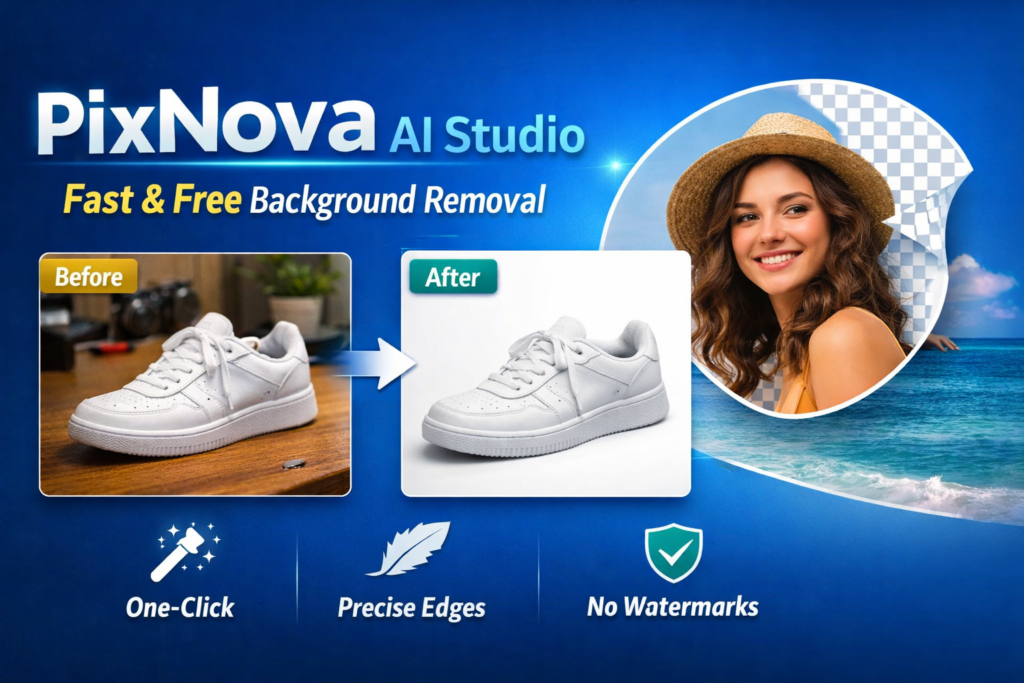
Quick take: The fastest background fixer I’ve used this year.
What I used it for: Cleaning up product photos for a landing page. I uploaded a cluttered desk shot and had a clean white background in under 10 seconds.
Best features
- One-click background removal
- Smart edge detection (hair works shockingly well)
- No watermark on free exports
Free plan reality
- Limited resolution on large images
- No batch processing
Best for: Small business owners and freelancers
2. LumaEdit Free
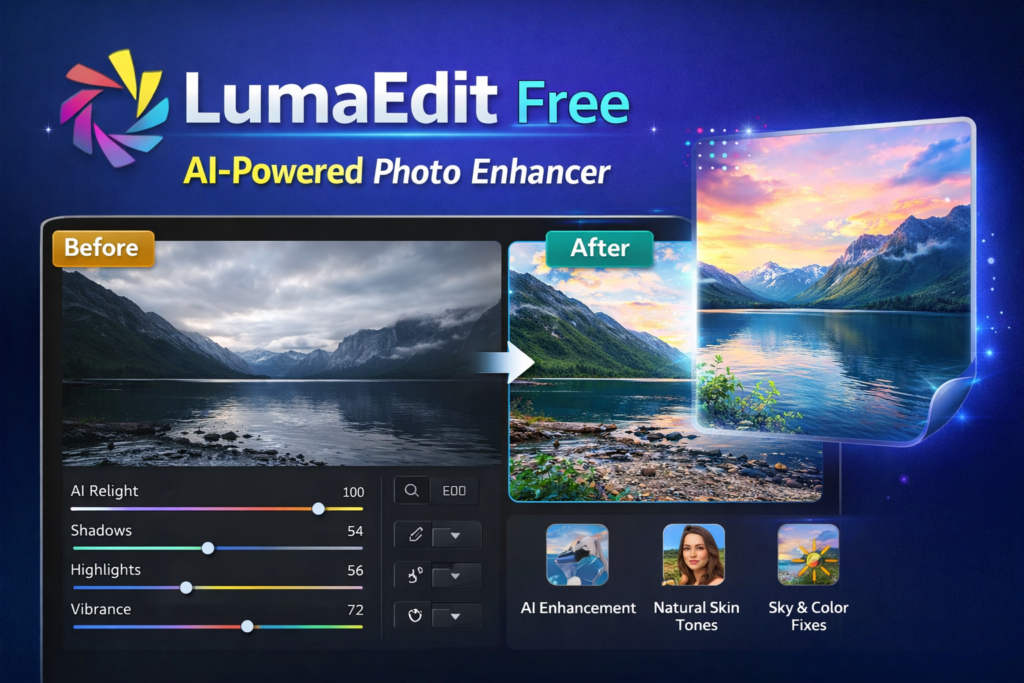
Quick take: Feels like Lightroom with AI shortcuts.
What I used it for: Fixing dull travel photos shot on a cloudy day.
Best features
- AI color correction
- Shadow and highlight recovery
- Natural skin tones (no plastic look)
Free plan reality
- Manual export only
- Cloud saves disabled
Best for: Instagram creators who hate over-editing
3. PhotoPatch AI
Quick take: Content-aware fill that actually works.
What I used it for: Removing random people from a street photo. One brush swipe. Gone.
Best features
- Object removal
- AI texture rebuilding
- Undo history (rare for free tools)
Free plan reality
- One image at a time
- Queue during peak hours
Best for: Travel and street photographers
4. SnapRefine
Quick take: The best free upscaler I tested.
What I used it for: Reviving an old 720p image for a blog header.
Best features
- 2× upscaling without artifacts
- Face detail recovery
- No forced login
Free plan reality
- Upscale capped at 2×
- Slower on mobile
Best for: Bloggers and website owners
5. CleanShot AI
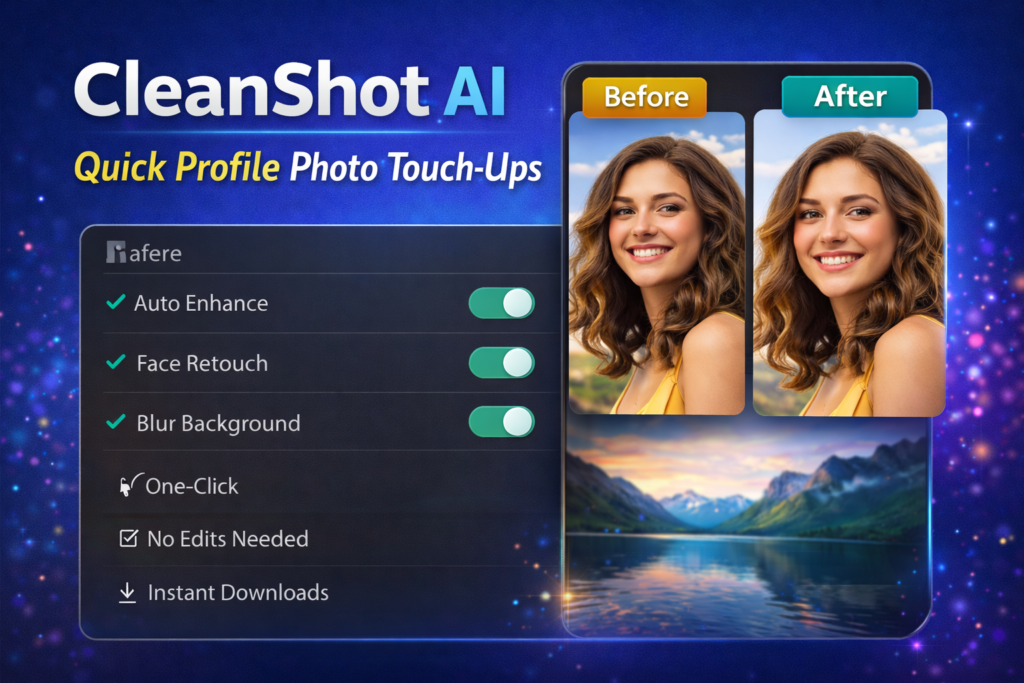
Quick take: Designed for people who hate learning curves.
What I used it for: Quick profile photo touch-ups.
Best features
- Auto face enhancement
- Background blur
- Smart crop for social platforms
Free plan reality
- Presets only
- Limited manual controls
Best for: Beginners and non-designers
6. FrameFixer
Quick take: Cropping that actually understands composition.
What I used it for: Turning landscape photos into vertical reels.
Best features
- AI composition analysis
- Rule-of-thirds alignment
- Platform-specific ratios
Free plan reality
- Watermark-free
- Export limit per day
Best for: Short-form video creators
7. RestoreAI Lite
Quick take: Old photo repair without creepy over-smoothing.
What I used it for: Fixing a faded family photo from 2009.
Best features
- Scratch removal
- Color restoration
- Grain preservation
Free plan reality
- One restoration per image
- No batch uploads
Best for: Personal archives and memories
8. LightFix AI
Quick take: Lighting control without studio gear.
What I used it for: Fixing harsh shadows on face shots.
Best features
- AI relighting
- Soft shadow control
- Natural contrast balance
Free plan reality
- Limited light presets
- No custom angles
Best for: Portrait creators
9. EraseIt Now
Quick take: The cleanest object remover on mobile.
What I used it for: Removing logos from stock images (for mockups).
Best features
- Brush-based removal
- Fast processing
- Mobile-first design
Free plan reality
- Ads between edits
- Export quality still solid
Best for: On-the-go editing
10. ColorGrade AI Free
Quick take: Cinematic looks without LUT headaches.
What I used it for: Giving consistency to a photo series.
Best features
- AI style matching
- Film-inspired tones
- Adjustable intensity slider
Free plan reality
- Fewer styles
- No custom presets
Best for: Visual storytellers
Quick Comparison Table — Free AI Photo Editors (2026)
| Tool Name | Best Use Case | Free Export | Watermark | Login Required |
| PixNova AI Studio | Background removal | Yes | No | No |
| LumaEdit Free | Color correction | Yes | No | Yes |
| PhotoPatch AI | Object removal | Yes | No | Yes |
| SnapRefine | Upscaling | Yes | No | No |
| CleanShot AI | Quick touch-ups | Yes | No | Yes |
| FrameFixer | Cropping | Yes | No | No |
| RestoreAI Lite | Old photos | Yes | No | Yes |
| LightFix AI | Lighting fixes | Yes | No | Yes |
| EraseIt Now | Mobile edits | Yes | No | No |
| ColorGrade AI Free | Style grading | Yes | No | Yes |
Common Mistakes People Make With Free AI Photo Editors
I’ve made all of these. Learn from my pain.
- Over-editing faces. If pores disappear, you went too far.
- Ignoring export resolution. Always check pixel size before publishing.
- Trusting auto-crop blindly. AI is smart, not psychic.
- Uploading sensitive images. Read privacy notes. Always.
🧠 Pro-Tip (This One Actually Matters)
Run your image through two different tools.
I often remove objects in one editor, then color-correct in another. Most free tools specialize. Stacking them gets you paid-level results without paying.
Which Free AI Photo Editor Should You Use in 2026?
- Total beginner? Start with CleanShot AI
- Social media creator? LumaEdit Free + FrameFixer
- Website or blog owner? SnapRefine + PixNova
- Old photo restoration? RestoreAI Lite
You don’t need all ten. You need the right two.
FAQ
Are free AI photo editors safe?
Most are, but don’t upload private documents or sensitive faces unless you trust the platform.
Can I use these images commercially?
Many allow it. Check each tool’s terms before client work.
Do these tools replace Photoshop?
For 80% of everyday edits? Yes. For heavy compositing? Not yet.